AI video
Common AI Video Mistakes and How to Fix Them (A Real Example)
Short answer: AI video tools make a fast first draft, not a finished clip. The usual mistakes are text with typos, soft low-resolution footage, motion that is not what you asked for, and a weak ending. Fix them with a specific prompt, a proofreading pass, a gentle crop and colour grade, and a deliberate final shot.
We hit every one of these while making a short tutorial that turns a single car photo into a cinematic clip with Canva Image to Video and a few AI finishing steps. You can watch the result on YouTube. Here is what went wrong and how we fixed it.
What is the most common AI video mistake?
A prompt that leaves the tool guessing. Our first prompt in Canva Image to Video was "Move the car forward to exit the picture. Do not change the size." It sounds clear, but the tool decided how far and how fast the car moved, and the result was a pass-by at the edge of the frame rather than a clean exit.
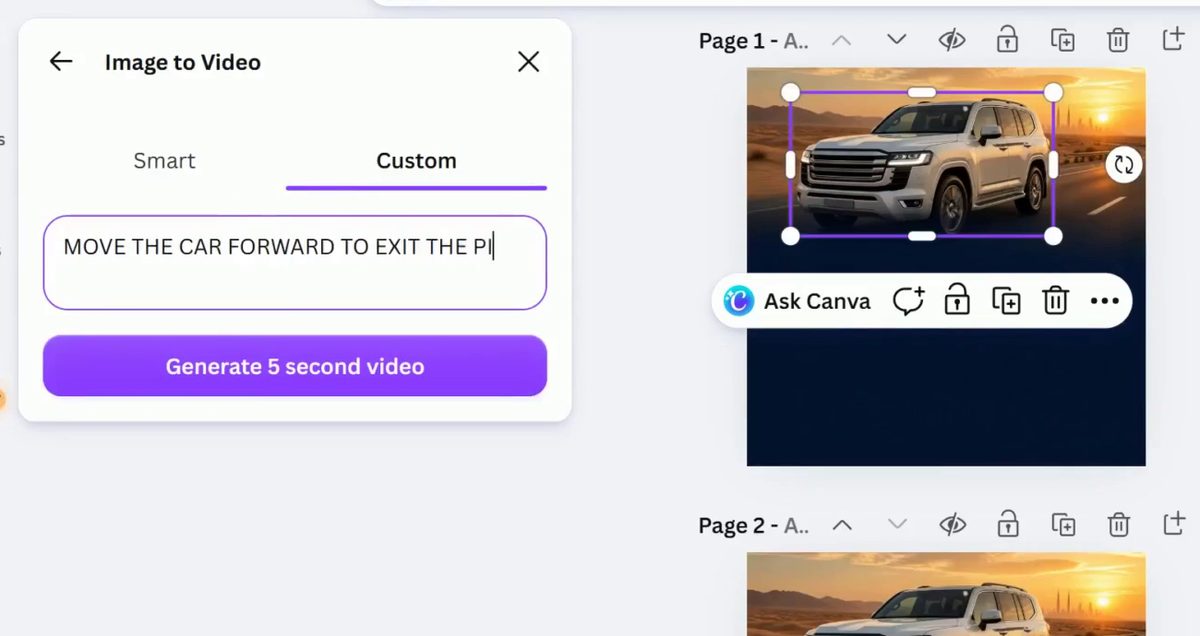
Fix: describe one action, say what must not change, and add the camera style. We now start from this version: "The car drives forward and leaves the frame. Keep the car's size and the background unchanged. Smooth, cinematic camera." Then generate again and compare, because the first result is rarely the last.
Why does AI-generated text have typos?
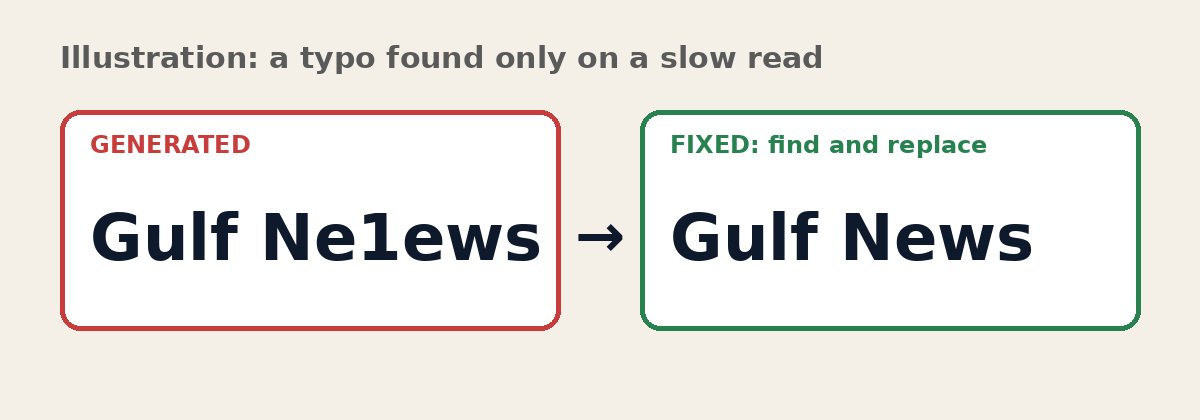
Image and design generators draw letters as shapes, so they sometimes swap, add or invent characters. On a generated news-style poster, the source name came out as "Gulf Ne1ews". It looked fine at a glance and was only caught by reading it slowly.
Fix: never regenerate the whole design for one wrong word. Replace just that text, then read every line aloud. Check names, numbers and dates against your source.
Why does AI footage look soft or blurry?
The clip our tool produced was small, about 696 × 389 pixels in the useful area. Stretched to full HD, it looked soft.
Fix:
- Crop to the subject, but do not zoom in more than you must.
- Use slow motion to make the movement feel smooth and deliberate.
- Add a colour grade and a light grain so the softness reads as a style.
- For a sharper result, run Image to Video on the full scene photo instead of a background-removed cut-out.
How do you fix a weak ending?
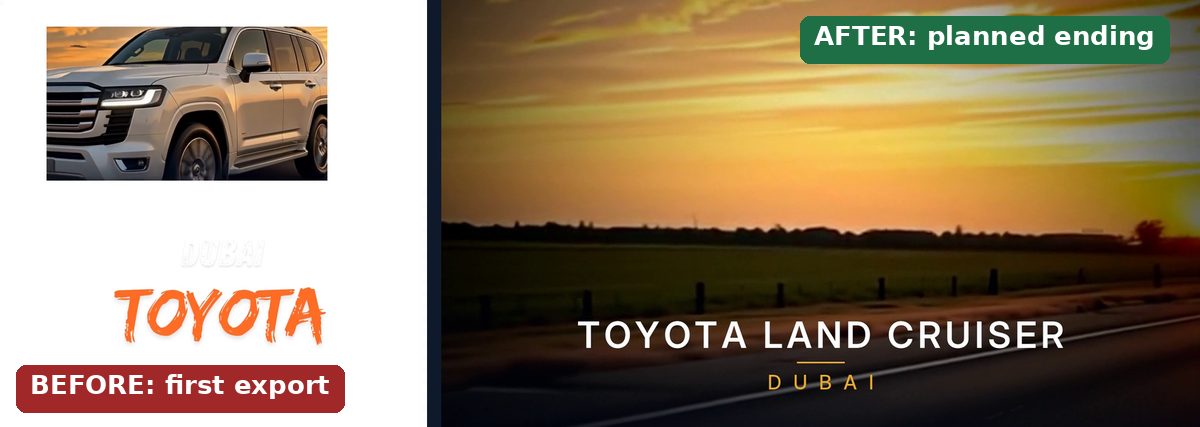
Our first export finished on a plain white page. It was technically complete and felt unfinished.
Fix: plan the last shot. We rebuilt the ending as a 12-second cinematic clip: the car slowly pushes out of frame, a slow zoom follows, and a clean title settles in. If the last five seconds are the one thing viewers remember, design them first.
What about voiceover and sound?
Text-to-speech voices read evenly, so long sentences sound flat. Our narration was English only, which limits who can follow it.
Fix: write short lines of one idea each, place every line on its matching step, and add a quiet ambient bed so pauses do not feel empty. If your audience speaks another language, make a separate version rather than relying on captions alone.
A quick checklist before you publish an AI video
- Read every word on screen, slowly, against your source.
- Watch at full screen and on a phone to check sharpness.
- Confirm the motion matches your intent, not just "looks cool".
- Check that the first three seconds and the last three seconds are strong.
- Listen once with headphones for sound level and pacing.
- Disclose AI-generated or altered content where the platform asks for it. YouTube, for example, has an altered-content setting.
Frequently asked questions
What are the most common AI video mistakes?
Text with typos or wrong letters, soft or low-resolution footage, motion that does not match what you asked for, a weak or empty ending, and a voice or tone that does not fit. All of them are easy to catch if you watch the result once with fresh eyes before you publish.
How do I fix a typo in AI-generated text?
Do not regenerate the whole design. Find the wrong word and replace only that text, then read every line of the design again. In our example, a generated poster showed "Gulf Ne1ews" instead of "Gulf News"; a single find-and-replace fixed it.
Why does my AI video look blurry?
Many image-to-video tools output a small clip, so enlarging it makes it soft. Crop in only as much as you need, use slow motion and a colour grade to hide softness, and start from the full photo rather than a cut-out if you want a sharper result.
How do I make AI move the subject the way I want?
Describe one clear action and say what must stay the same. A cleaned-up prompt you can start from: "The car drives forward and leaves the frame. Keep the car's size and the background unchanged. Smooth, cinematic camera."
Can I fully trust AI output without checking it?
No. Treat AI as a fast first draft. A human check for text, framing, sound and the final seconds is what turns a draft into finished work.